Portrait extra.
Your style, in your words.
Caricature, charcoal, watercolour - Portino's ready-made styles work for most parties. But sometimes you want something entirely your own: a portrait in brand colours, in the mood of a wedding or in a technique that isn't on the list. That's what Portrait extra is for - you describe the style in your own words and the painter paints your guests exactly like that.
How Portrait extra works
Instead of choosing a style from the list, you type a short description - a so-called prompt. Write it in English. Describe the technique, material, colours and background, and Portino does the rest. The guest's face stays true to the selfie: the software takes care of the likeness, so you don't need to write about it.
You can add three reference images to the description: a background (the scene behind the guest), a stylisation (colours, technique, effects) and a logo, which the software places on the portrait exactly as it looks in the file.
Three simple examples
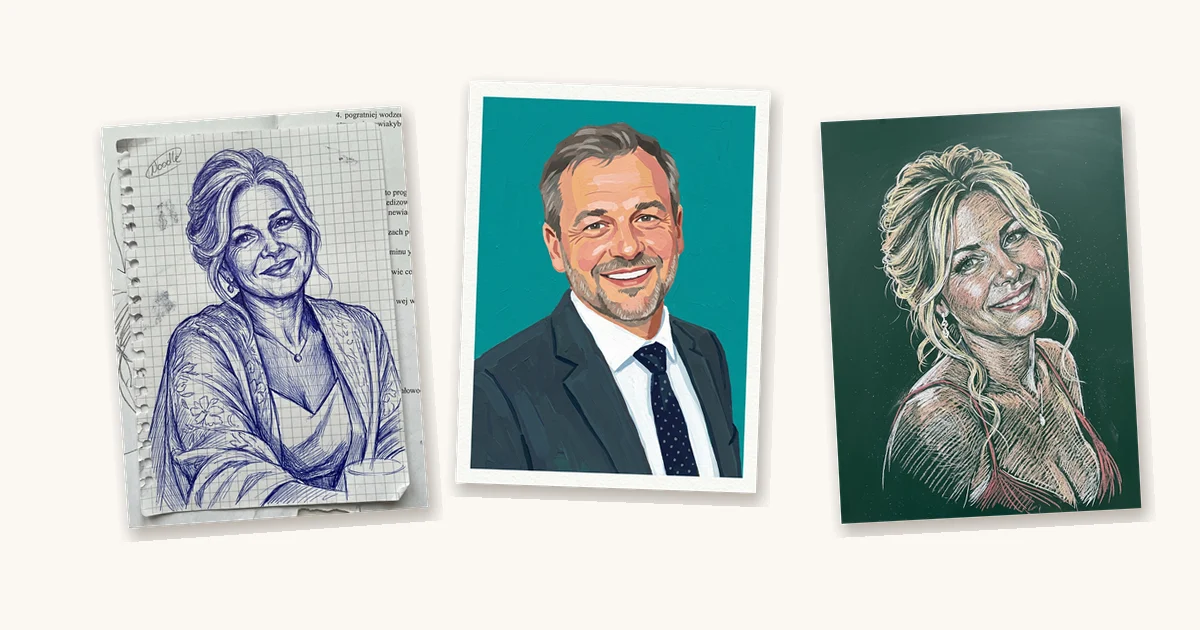
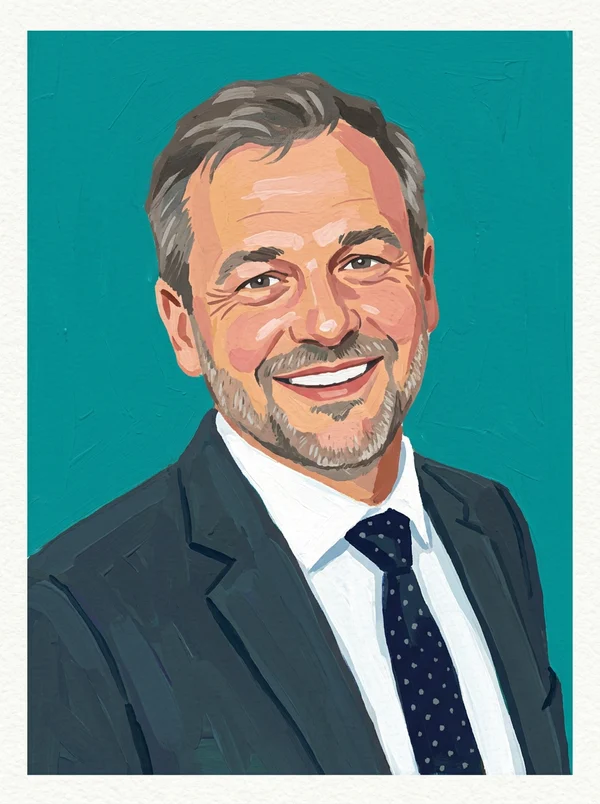
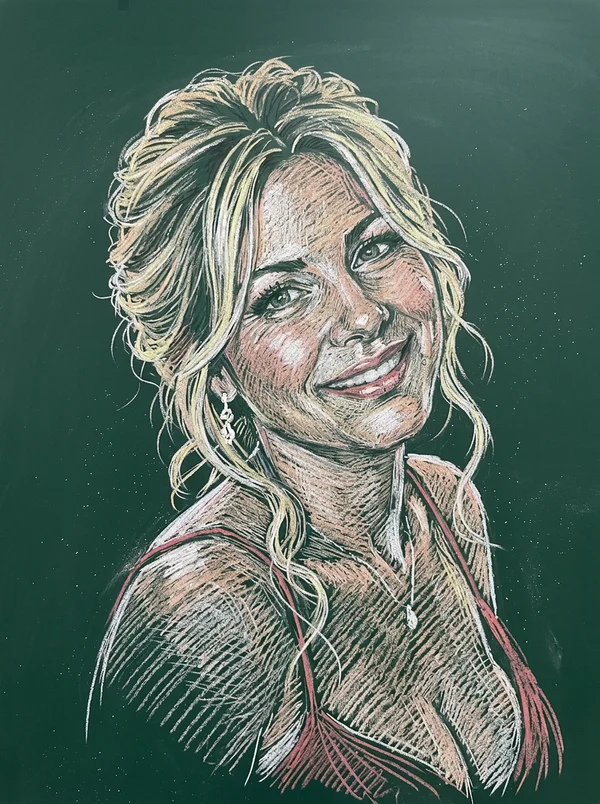
These portraits were made from short descriptions typed into the panel, without any reference images:
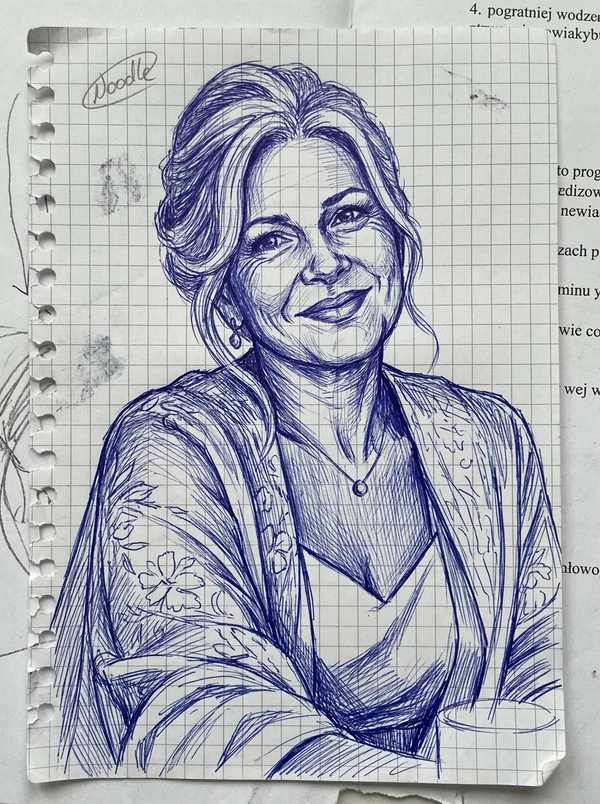
Ballpoint pen drawing. “Portrait drawn with a blue ballpoint pen on a sheet torn from a squared school notebook: dense, quick hatching, visible grid lines and slightly crumpled paper, like a sketch made during a boring lecture.”
Poster paint. “Portrait painted with poster paint on thick white paper: flat, saturated colours, visible strokes of a wide brush, simple shapes, a background in one strong colour, like an art class project.”
Chalk on a blackboard. “Portrait drawn with coloured chalk on a green school blackboard: white and pastel strokes, smudged chalk dust, visible blackboard texture.”
One sentence was enough to get three completely different portraits from the same software. At a wedding it could be a watercolour in the theme colours; at a corporate gala, a portrait in brand colours with the logo in the corner.
How to set up Portrait extra step by step
- Step 1. Open the Portino panel and go to the “Look” tab, “Picture style” section.
- Step 2. In the “Portrait extra - your own prompt and its graphics” box, click the “Portrait extra” card. From now on, every guest gets a portrait in your style.
- Step 3. In the “Portrait extra prompt” field, describe the style and click “Save prompt”.
- Step 4 (optional). Upload reference images: a background, a stylisation or a logo. The software describes the background and the stylisation itself, and you can correct that description.
- Step 5. Make a test portrait with a phone: scan the QR code on the screen and send a selfie. It's the quickest way to check whether you like the result.
- Step 6. Save the finished style with the “Save current Portrait extra” button and give it a name, e.g. “Wedding - watercolour”. At your next event on this computer, you restore it with one click.
How to write a good description
- describe the technique and the material: ballpoint pen, poster paint, chalk, oil on canvas, paper cut-out,
- add colours and a background: “bottle-green background”, “gold accents”, “plain white paper”,
- stick to one style - several techniques at once give a chaotic result,
- don't describe the face - the software takes care of the likeness,
- avoid text on the portrait - AI often mixes up letters, so add lettering or a logo as a reference image instead,
- remember that all guests see the portraits - the description should suit a family or corporate party,
- after every change to the description, make one test portrait before the guests arrive.
Portrait extra is in every version
Portrait extra works in the full version of Portino and in the free Demo, on Windows and on Mac. Try it on your own computer, and if you have an idea for an interesting style or a question, write to us at portinopolska@gmail.com.